














How to Install MT4 and MT5 on an Ubuntu Desktop VPS
If your preferred broker's version is not available in our pre-installed software list, you can easily download and install it manually on your Ubuntu Desktop VPS using Wine. This guide covers both methods.
Option 1: Choose a Pre-Installed MT4/MT5 During Ordering
Step 1: Select a Linux VPS Plan
Choose the Linux VPS plan that best fits your needs and click Order Now to proceed to the order page.
Step 2: Open Operating System & Software Options
On the order page, locate the OS & Additional Software section. Click Operating System & Software.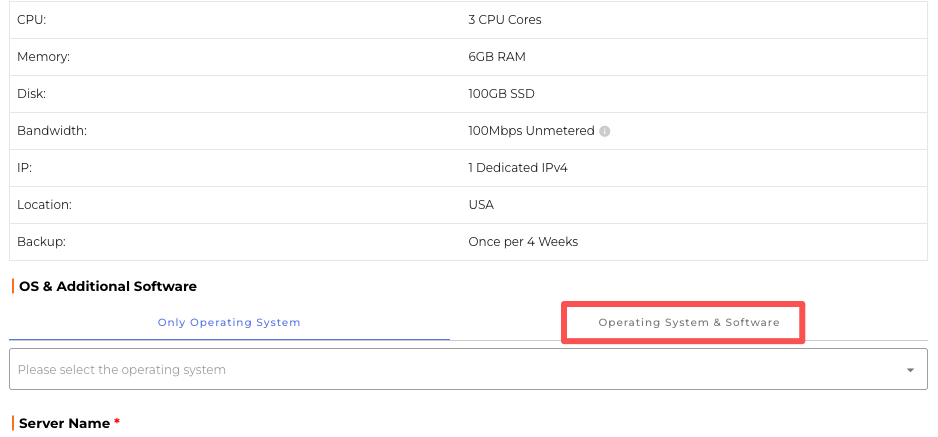
Step 3: Select Your Trading Software
Choose the trading software you would like us to pre-install (Metatrader 4 or Metatrader 5). Here, we select Metatrader 4.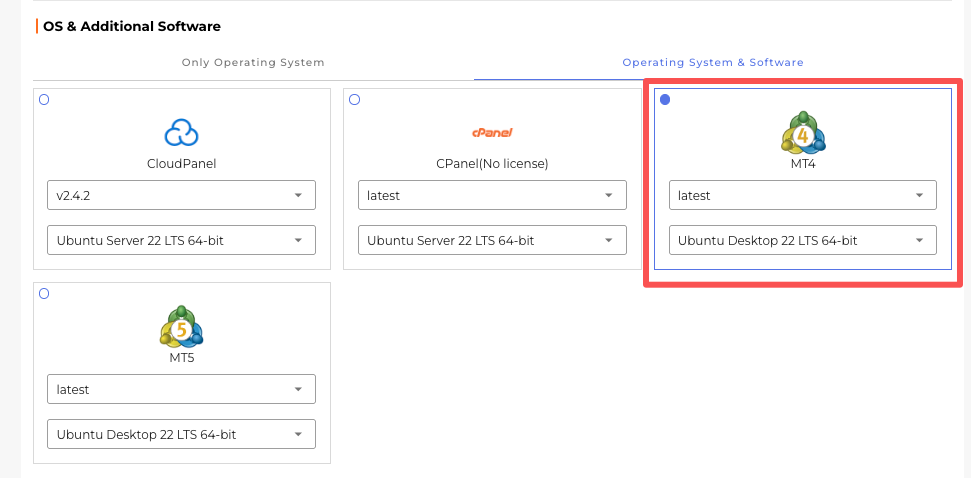
Step 4: Complete Payment
After payment is completed, our system will automatically deploy your VPS and install the trading software you selected.
Step 5: Connect to Your Server
Once deployment is completed, we will notify you by email. You can then connect to your Ubuntu Desktop VPS and start using your trading platform.
For instructions on connecting to Ubuntu Desktop, please refer to our connection guide at how to connect to Ubuntu Desktop.
After connecting to the server, you will see that MetaTrader 4 and MetaEditor 4 have already been pre-installed on the Ubuntu Desktop.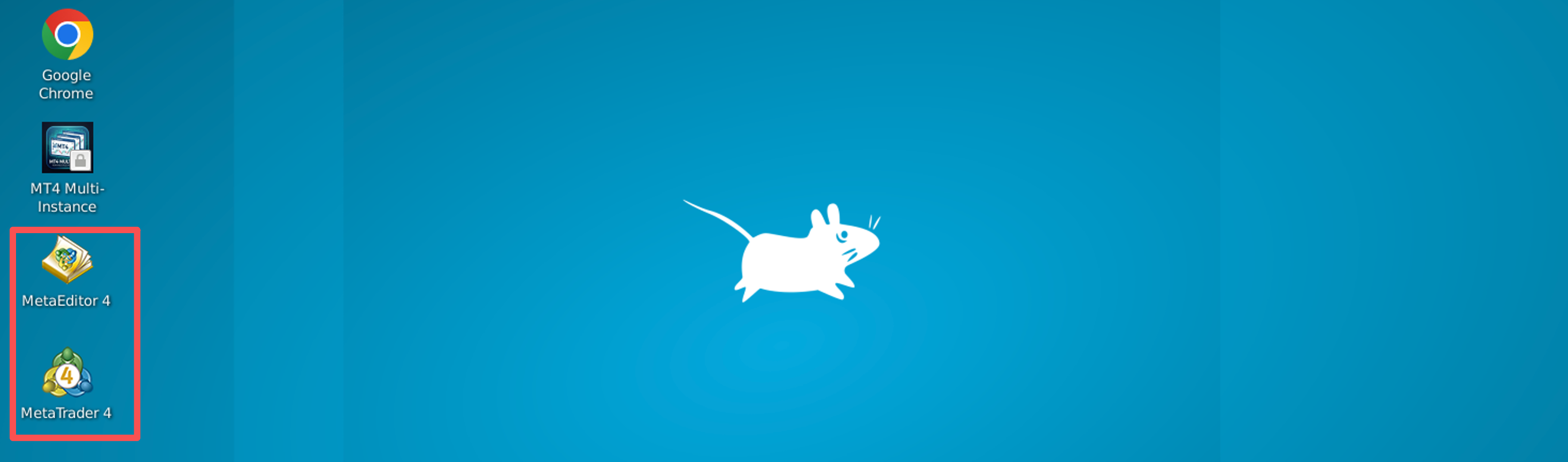
In addition, we have pre-installed an MT4 multi-instance launcher script, which allows you to run multiple MT4 terminals simultaneously on the same server.
How to Run Multiple MT4 Instances on Ubuntu Desktop
1. Launch the MT4 Multi-Instance Script
Double-click the launcher to open it.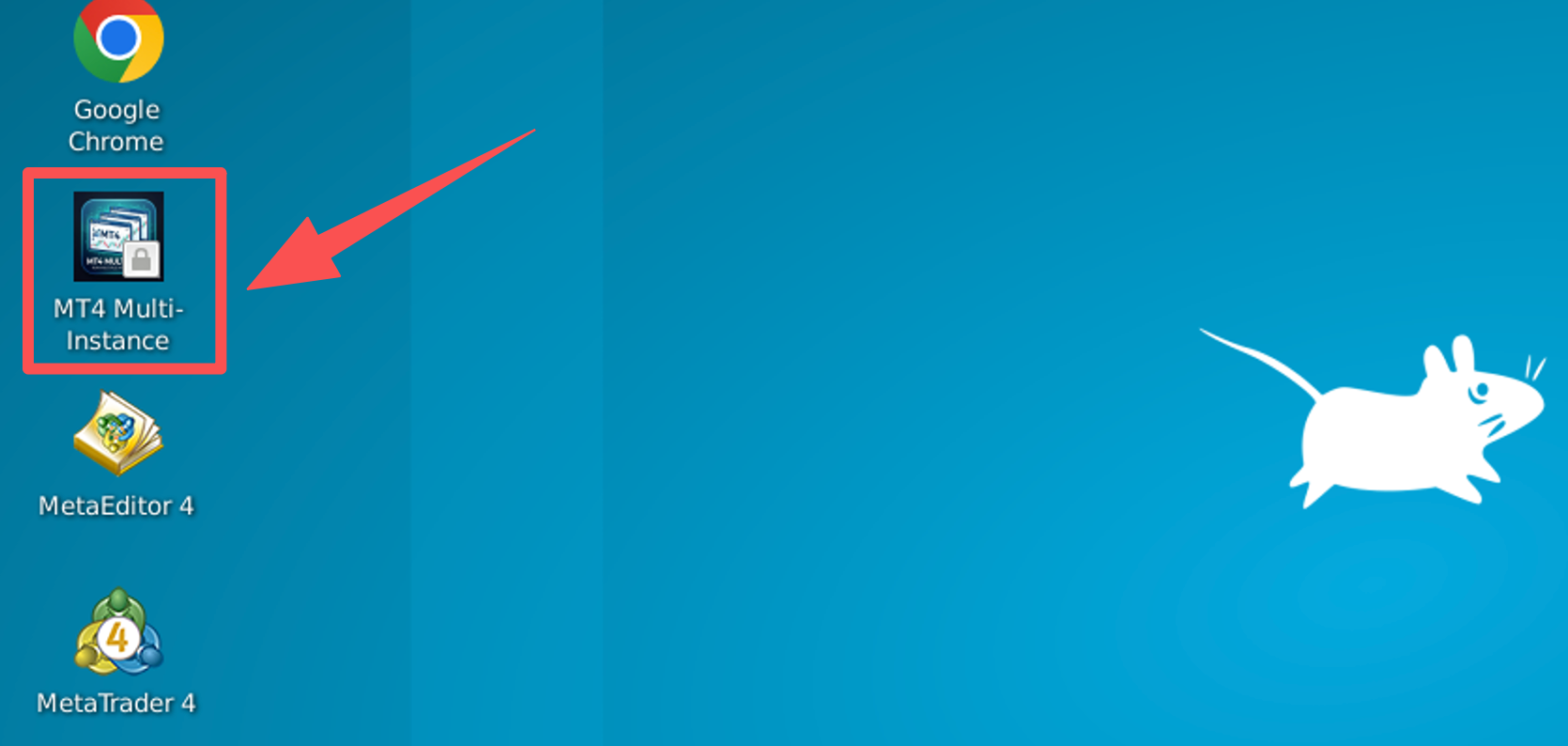
2. Create a New MT4 Instance
When the terminal window appears, enter a name for your new MT4 instance. You can enter a name such as trading01 and press Enter to create the new MT4 instance.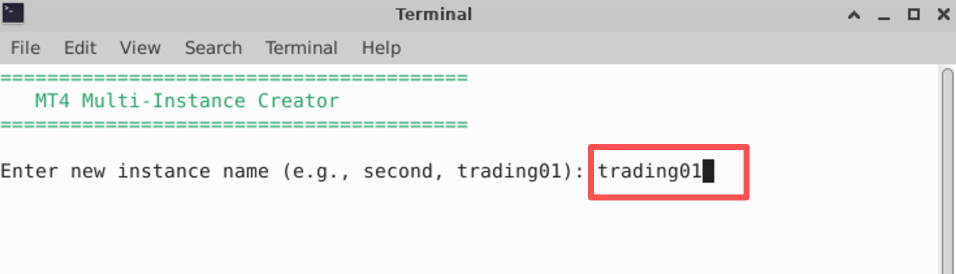
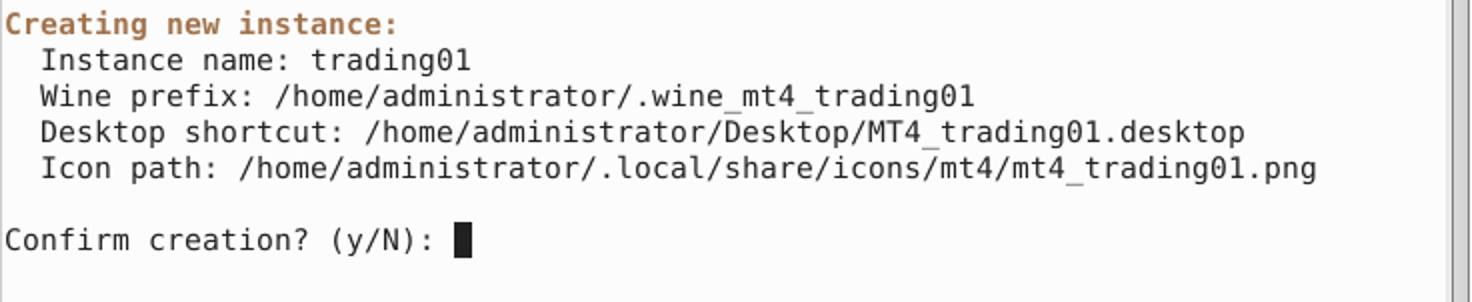
3. Confirm the Instance Creation
After entering the instance name, the script will display a summary of the new MT4 instance to be created. Then the script will then ask for confirmation. Type y and press Enter to confirm and create the new MT4 instance.
4. Wait for the Setup Process
After confirming the creation, the script will automatically create a new MT4 instance. During the process, you will see several setup steps.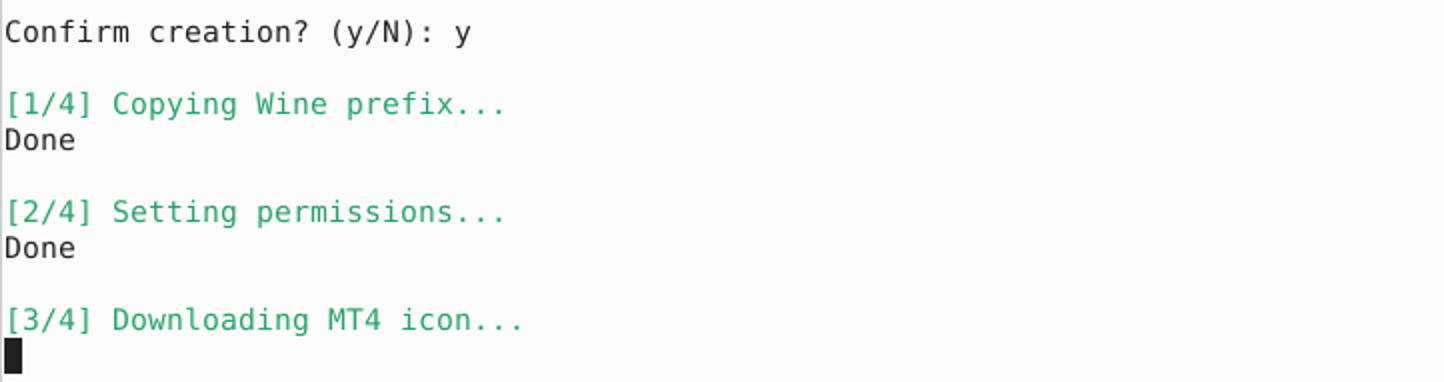
5. Launch the New MT4 Instance
Once the process is complete, a new desktop shortcut will appear on the Ubuntu Desktop. In this example, a new shortcut named "MetaTrader 4 - trading01" has been created successfully.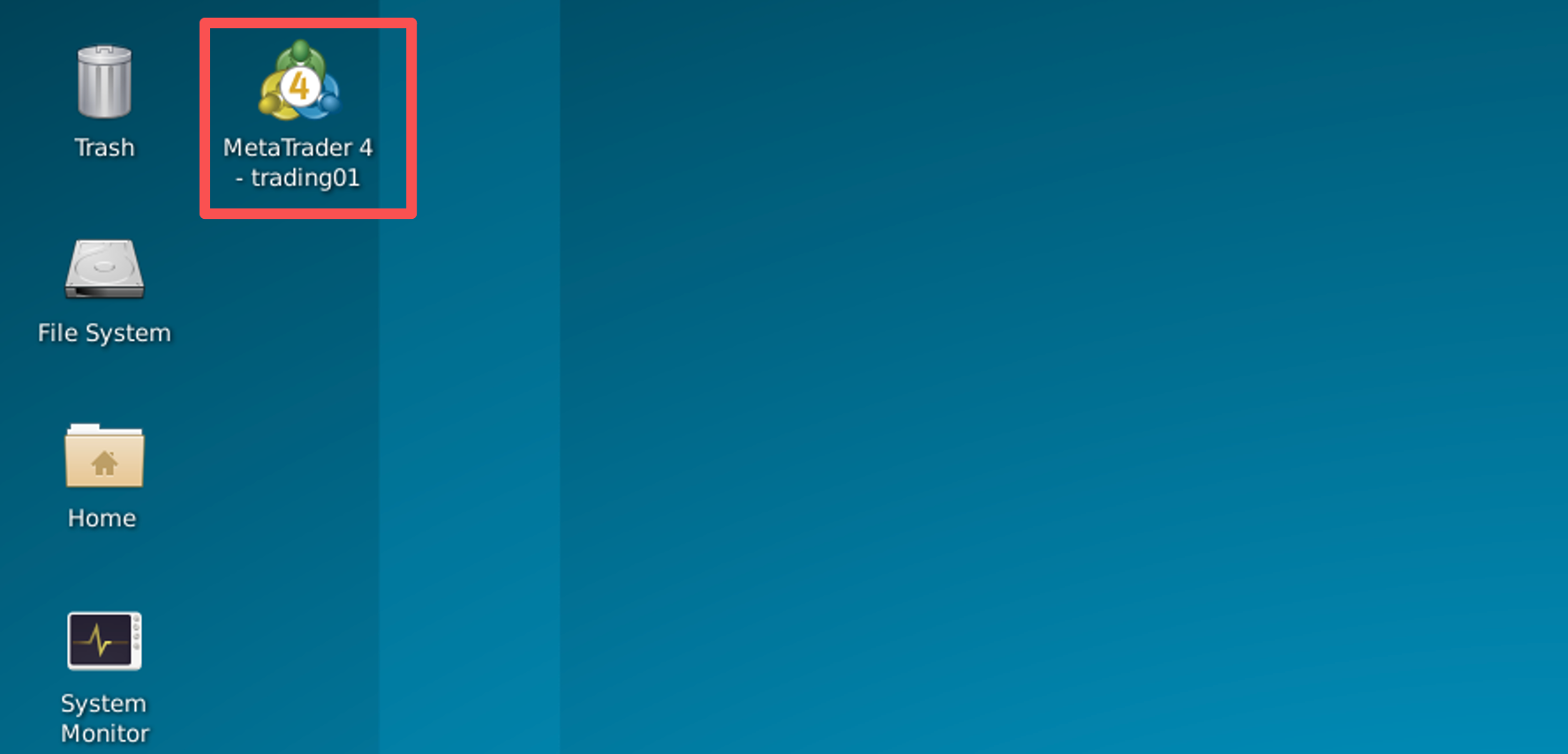
You can double-click the shortcut to launch the new MT4 instance. Each instance operates independently, allowing you to log in to different trading accounts and run multiple MT4 terminals simultaneously on the same server.
Option 2: Install Your Own Trading Software
If the software you need is not included in our pre-installed options, you can download and install it yourself.
Next, we will use Pepperstone MT5 as an example to demonstrate the installation process. The same steps can be applied to MT4 or MT5 installation packages from other brokers.
Step 1: Connect to Your Ubuntu Desktop VPS
Connect to your Ubuntu Desktop server. If you need help connecting, please refer to our connection guide.
After a successful connection, you will be able to access the Ubuntu Desktop environment.
Step 2: Open Google Chrome
Launch Google Chrome.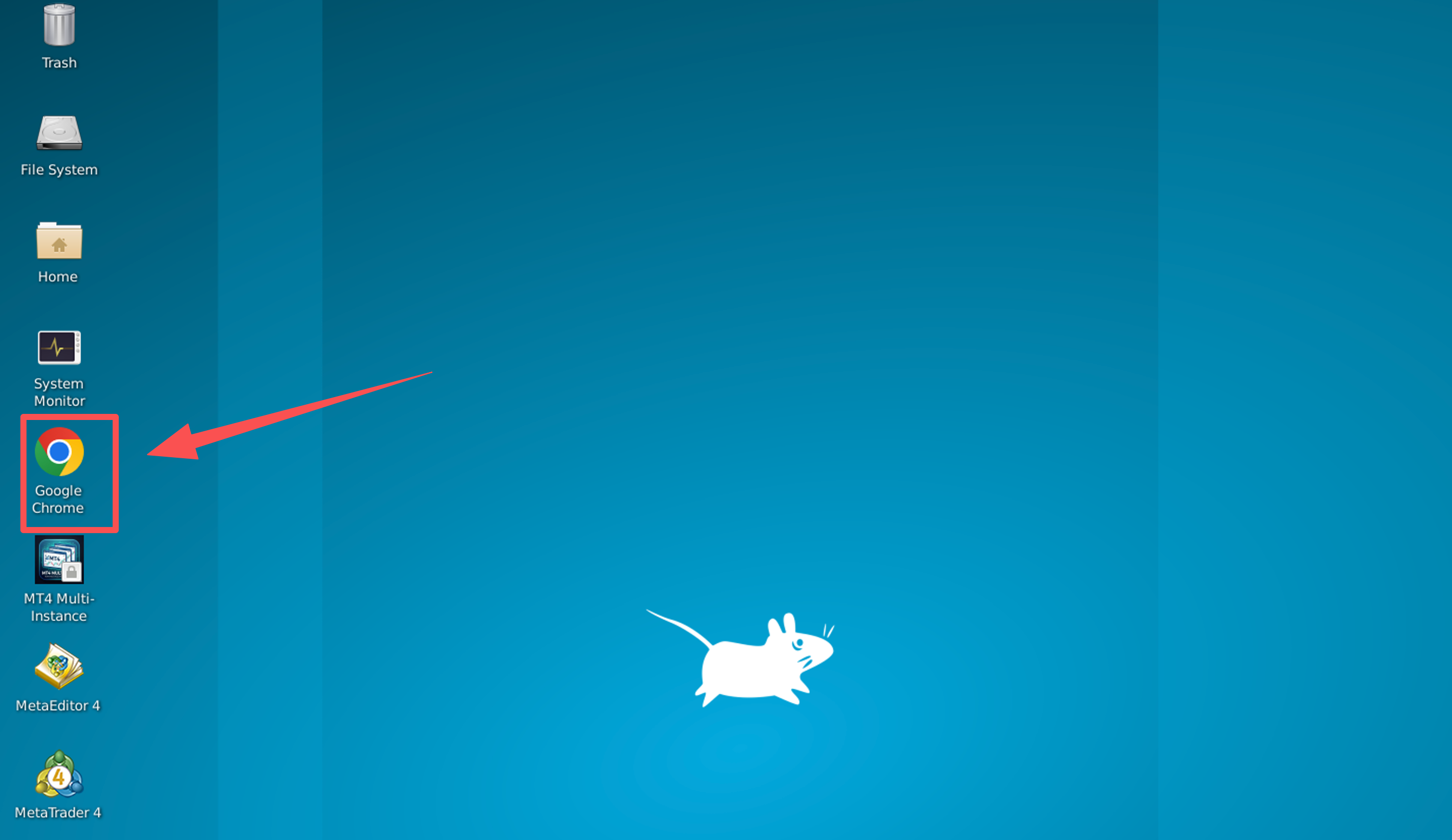
Step 3: Search for the Software You Want to Install
In the search box, enter the name of the software you want to download.
For example:
download pepperstone mt5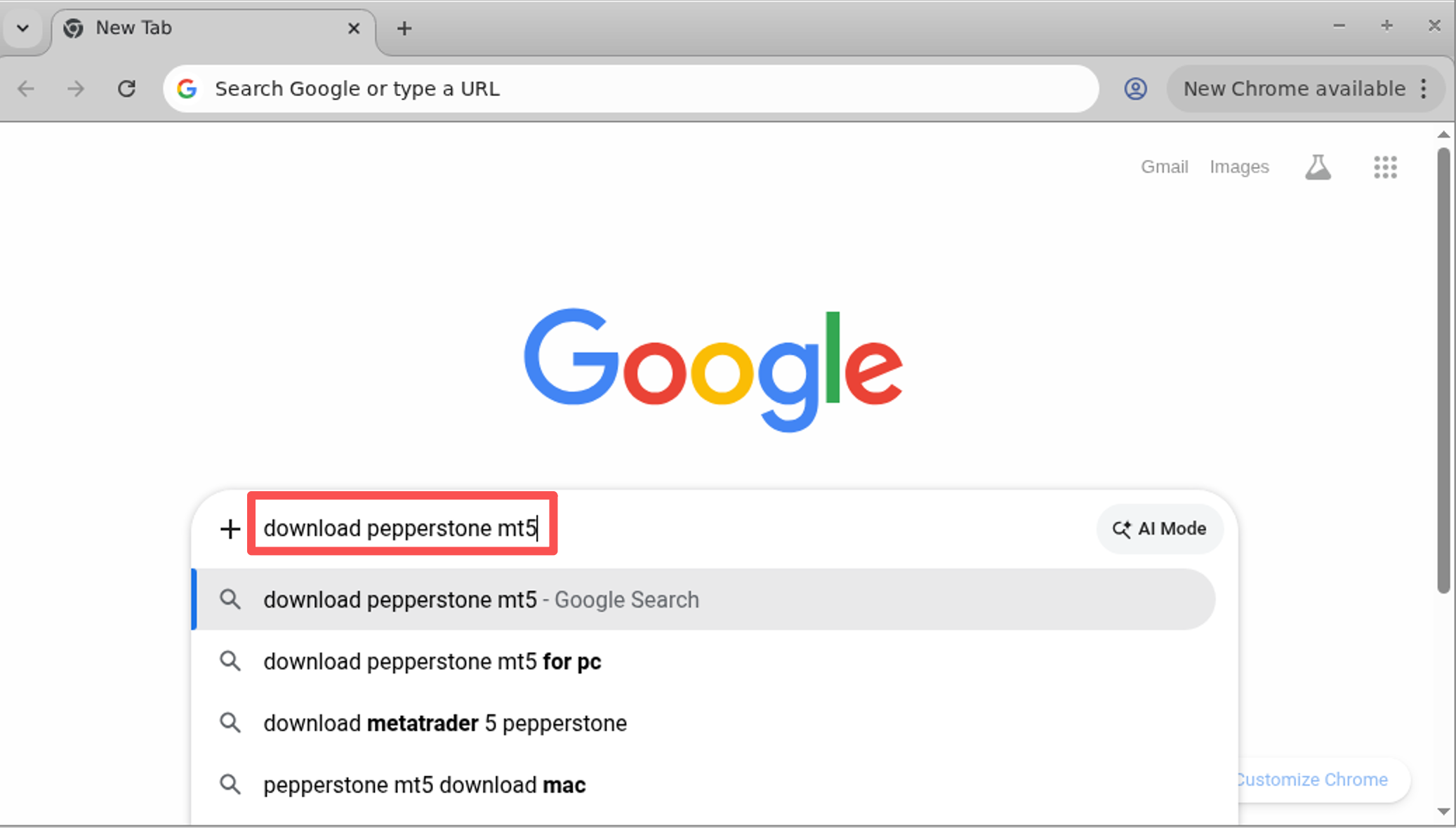
Step 4: Download the Installation Package
Locate the download page and click the Download button.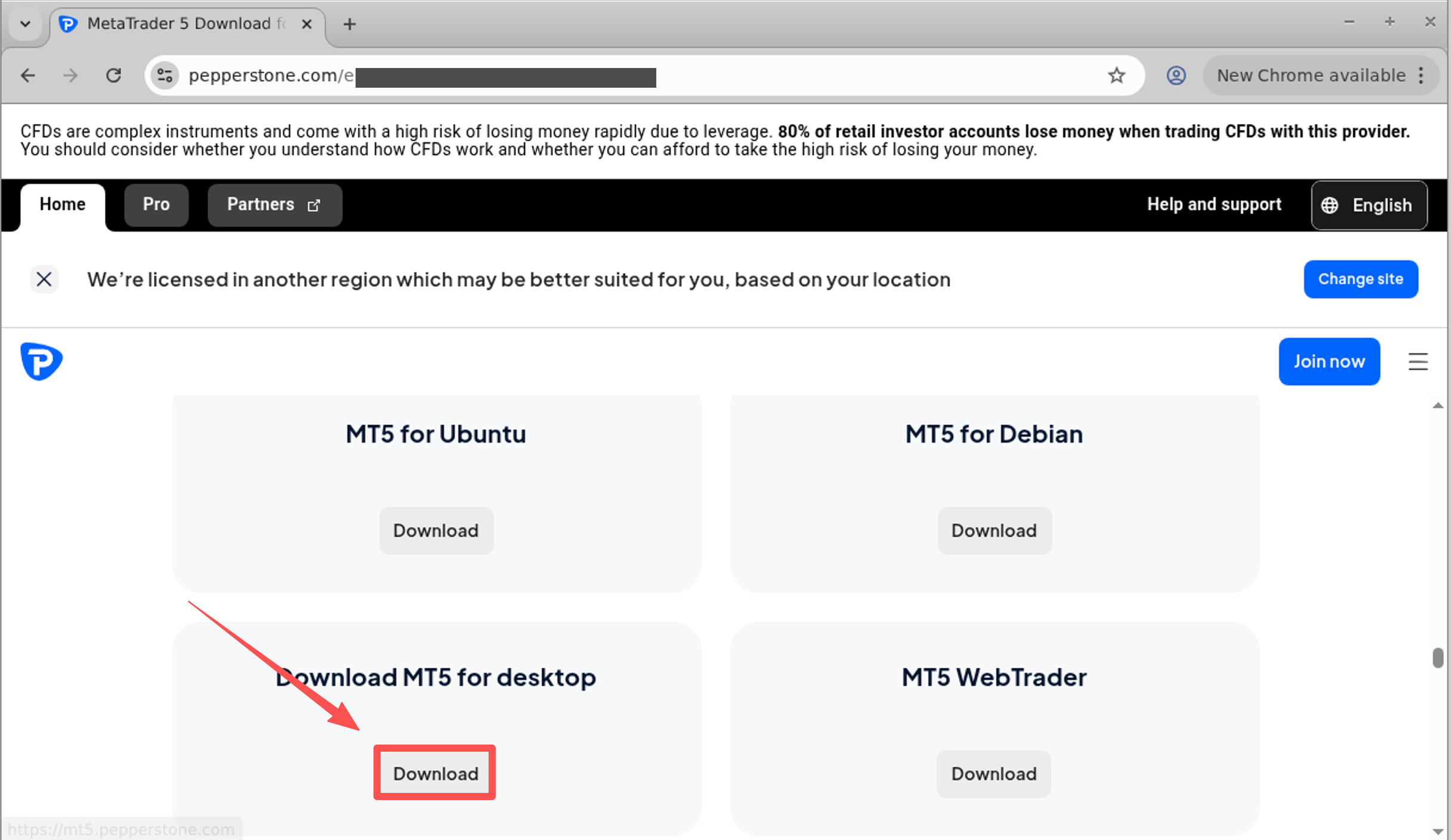
Once the download is completed, open the file location.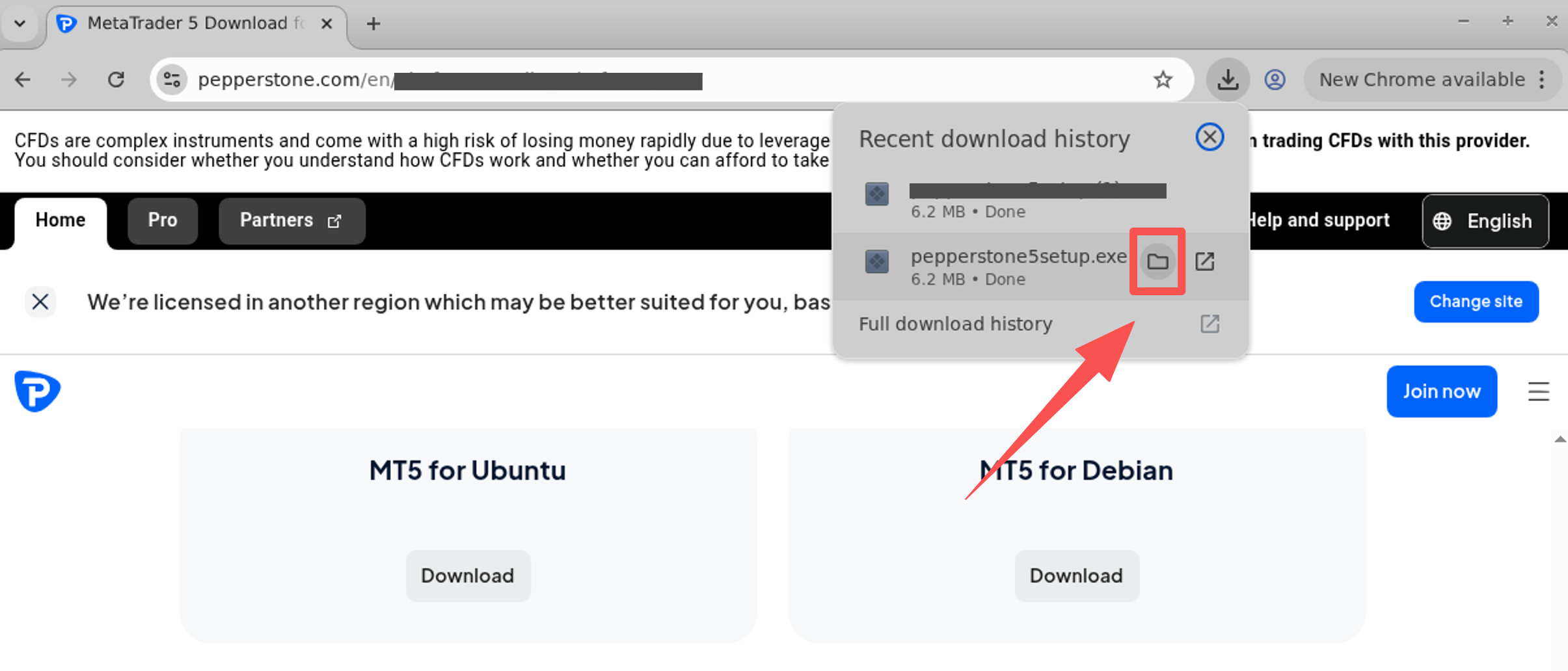
Step 5: Install Wine (Optional)
Before You Begin
If you selected our MT4 addon or MT5 addon when ordering your server, and the addon was successfully pre-installed, Wine is already installed on the server. In this case, you can skip this section and proceed directly to the MT4/MT5 setup steps.
If you did not select the MT4 or MT5 addon during checkout, you will need to install Wine manually before running MetaTrader.
Open Terminal.
Switch to the root user:
sudo -iRun the following commands:
cat >/etc/apt/sources.list <<'EOF'
deb http://archive.ubuntu.com/ubuntu jammy main restricted universe multiverse
deb http://archive.ubuntu.com/ubuntu jammy-updates main restricted universe multiverse
deb http://archive.ubuntu.com/ubuntu jammy-backports main restricted universe multiverse
deb http://security.ubuntu.com/ubuntu jammy-security main restricted universe multiverse
EOF
sudo dpkg --add-architecture i386
sudo apt update -ysudo mkdir -pm755 /etc/apt/keyrings
sudo wget -O /etc/apt/keyrings/winehq-archive.key https://dl.winehq.org/wine-builds/winehq.keysudo wget -NP /etc/apt/sources.list.d/ \
https://dl.winehq.org/wine-builds/ubuntu/dists/jammy/winehq-jammy.sourcessudo apt update -ysudo apt install -y \
winehq-stable=10.0.0.0~jammy-1 \
wine-stable=10.0.0.0~jammy-1 \
wine-stable-amd64=10.0.0.0~jammy-1 \
wine-stable-i386=10.0.0.0~jammy-1sudo apt-mark hold winehq-stable wine-stable wine-stable-amd64 wine-stable-i386sudo apt install winetricks xvfb -yAfter the installation is complete, verify the Wine version:
wine --version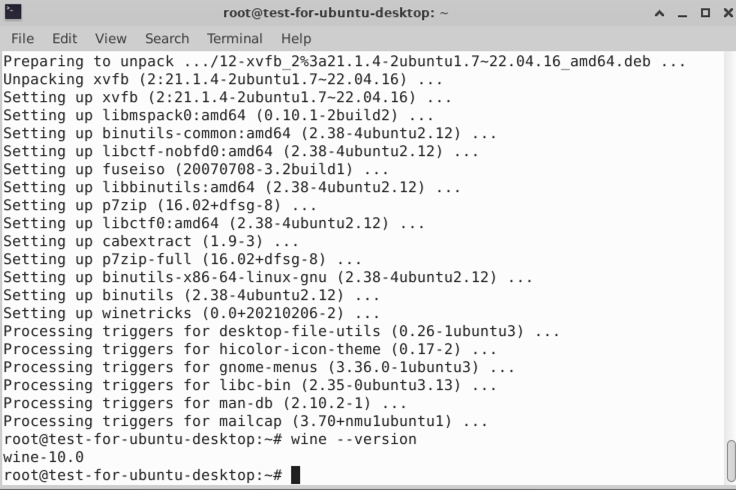
The output should display Wine version 10.0.
Step 6: Launch the Installer with Wine
Locate the downloaded installation package. Right-click the file and select:
Open With → Wine Windows Program Loader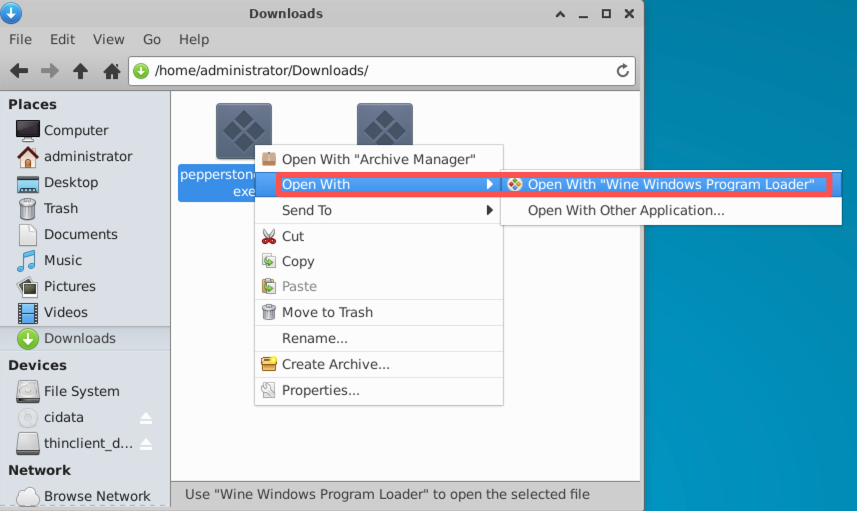
Step 7: Install Wine Mono
During the installation process, a prompt titled Wine Mono Installer may appear.
Click Install to continue.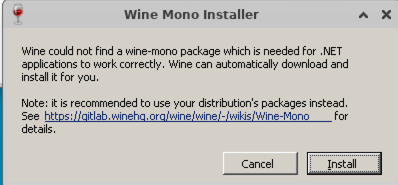
Step 8: Complete the MT5 Installation
After Wine Mono is installed, the Pepperstone MT5 installation wizard will start automatically. Follow the on-screen instructions to complete the installation.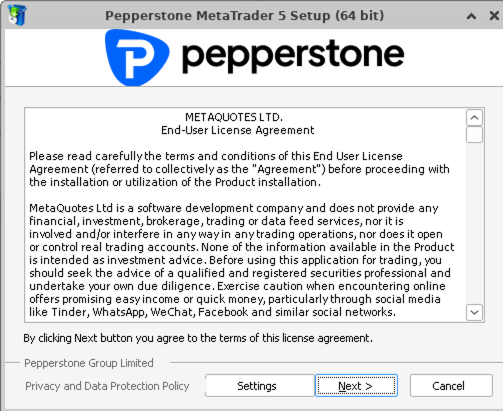
Once the installation is finished, you can launch and use Pepperstone MT5 on your Ubuntu Desktop VPS.
Conclusion
Running MT4 or MT5 on an Ubuntu Desktop VPS is a reliable way to keep your trading platform online 24/7. Whether you choose a pre-installed MT4/MT5 deployment or install your broker's customized version manually, the process is straightforward and can be completed in just a few steps.
If you need assistance with your Ubuntu Desktop VPS or with installing trading software, our support team is always available to help.
Keywords:
MT4 on Ubuntu VPS, MT5 on Ubuntu VPS, Install MT4 on Ubuntu, Install MT5 on Ubuntu, Ubuntu Desktop VPS, MetaTrader Ubuntu, MetaTrader 4 Ubuntu, MetaTrader 5 Ubuntu, Wine for MT4, Wine for MT5, Run MT4 on Linux, Run MT5 on Linux, Ubuntu trading VPS, Forex VPS hosting, MetaTrader VPS, Linux VPS for trading, MT4 VPS, MT5 VPS, Ubuntu remote desktop VPS, Forex trading VPS, MetaTrader installation guide