
How to Configure Port Mapping on Cloud Clusters Panel
Overview
This guide is intended for users who are running applications on our Linux VPS with the default Shared IP configuration and need to make those services accessible from the public internet.
By default, Shared IP Linux VPS instances run in a private internal network and do not have a dedicated public IP address. This means services running inside the VPS (such as a database, web service, or application server) cannot be accessed directly from the internet.
To enable external access, Cloud Clusters's control panel provides a gateway system that forwards traffic from a public IP and port to the internal IP and port of your VPS. In simple terms, the traffic flow works like this: Public IP : Public Port → VPS Internal IP : Internal Port
This process is called port mapping (also known as port forwarding). By configuring port mapping in the control panel, you can expose specific services running inside your VPS to the public internet.
How Does Port Mapping Management Work?
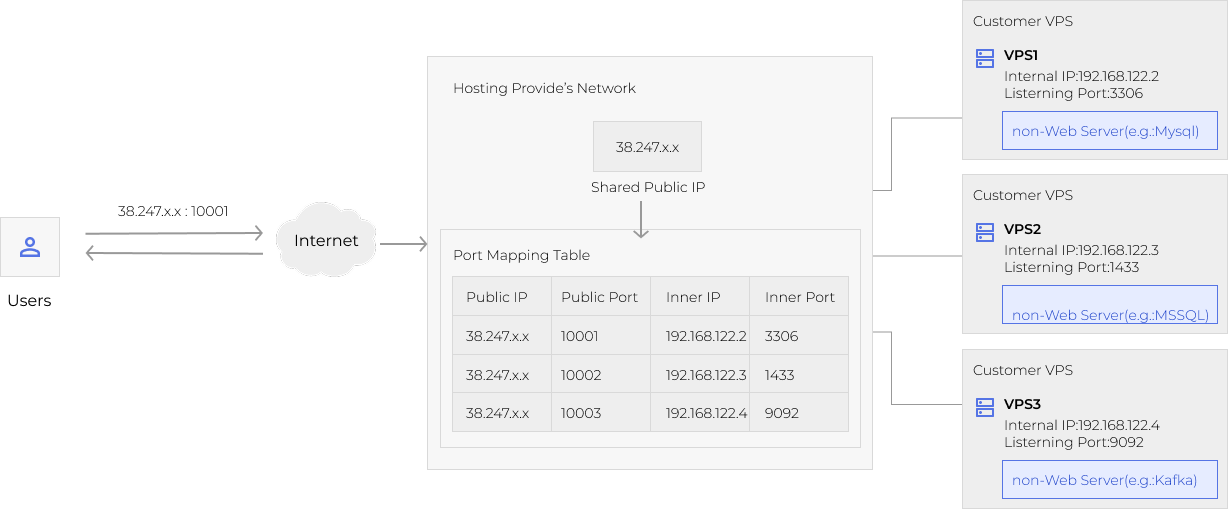
Deployment Steps
Step 1: Deploy Your Application Inside the VPS
First, install and run the application inside your VPS and identify the internal service port it uses. For example, if you install MySQL, the default service port is: 3306
Step 2: Configure Port Mapping in the Control Panel
Once your application is running, you need to create a port mapping rule.
A. Open the Networking Page
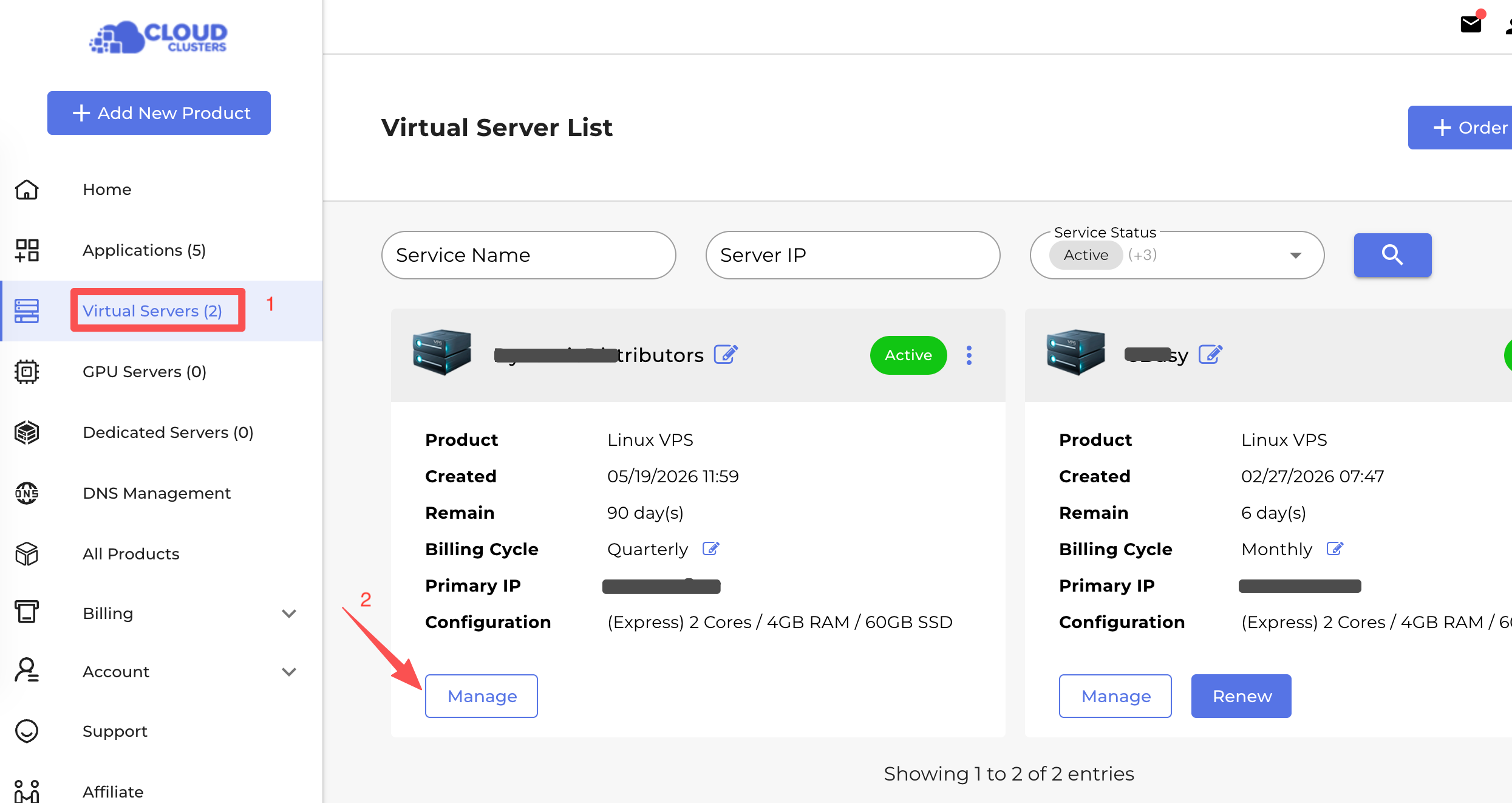
- Go to Control Panel. Click the "Manage" button to go to your VPS Details page in the control panel.
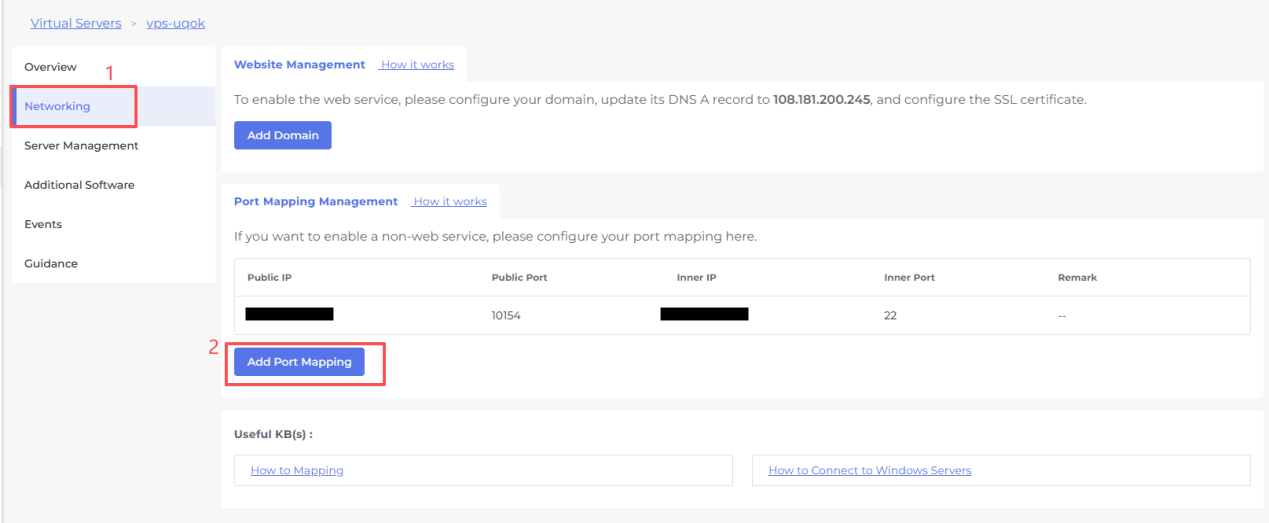
- Click the "Networking" button to configure port mapping. Then, click "Add Port Mapping".
B. Create the Port Mapping Rule
In the pop-up window:
- Inner Port: Enter the internal application port (for MySQL, this is 3306)
- Remark: Enter a note for the rule (optional)
Click Confirm to add the mapping.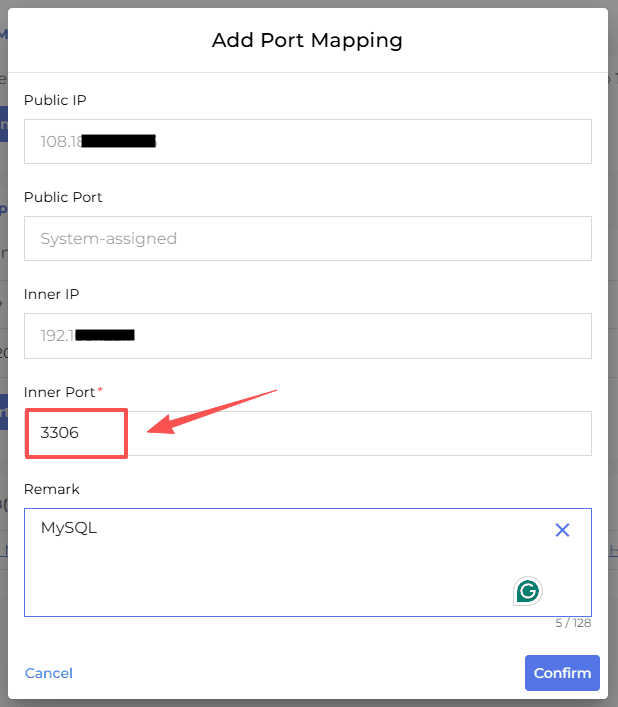
C. Access Your Application
After the mapping is created successfully, a new rule will appear in the list. You will see:
- Public IP
- Public Port (automatically generated)
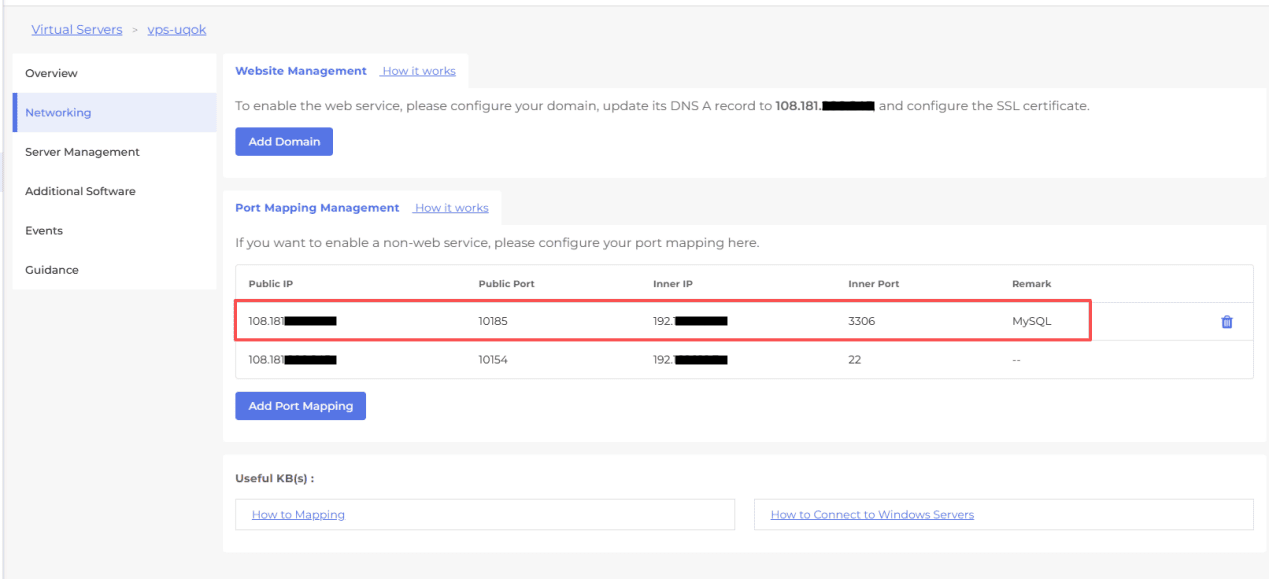
You can now connect to your application using:
Public IP : Public PortYour MySQL service is now accessible from the public internet.
Conclusion
Port mapping allows you to expose services running inside your VPS to the public internet by forwarding traffic from a public IP and port to the internal port of your application. Once configured, external users can access your services using the assigned public IP and port.
If you encounter any issues during the setup process or need further assistance, please contact our support team. We will be happy to help you.